
1. Introduction
Visual Studio Code (VSCode) is a pioneer and still among the best-ranked editors when it comes to an integrated development environment (IDE) with excellent performance, multiple built-in features, and extensions. Its simple, intuitive, but expandable interface provides everything necessary and beyond to view and edit everything from basic text, through code, to PDF and image files.
To aid with the loading speed, overall performance, and convenience, Visual Studio Code implements caching and cache controls on several levels.
In this tutorial, we delve into file management and ways to manage different caches within the VSCode IDE. First, we go over the concept of a file cache in terms of loading and caching. After that, we explore how Visual Studio Code handles files and file changes. Next, we get into VSCode caches. Later, we see which caches are affected by common editor clearing and reloading operations. Finally, we set up a simple task to perform a cache-clearing operation during every VSCode launch.
For this tutorial, we work with Visual Studio Code version 1.103.2, assuming it’s installed normally, e.g., not a portable or custom-configuration deployment. This means the directory that holds the IDE data is at a known location that depends on the operating system (OS) in use:
- Linux: ~/.config/Code/
- macOS: ~/Library/Application Support/Code/
- Windows: %APPDATA%\Code\
Notably, we refer to the above paths as simply DATA_DIRECTORY.
2. File Cache
Optimizing how data gets from its current source to where it’s needed can lead to great speed benefits.
2.1. Loading
In essence, loading means moving data from one memory storage, storage type, or sector to another. Usually, the main idea is to get data to a place where it can be managed (read from or written to) faster.
Commonly, loading occurs from a secondary memory medium such as a hard disk drive (HDD), solid state disk (SSD), or similar to main memory, e.g., volatile RAM. In fact, this is the main case we look at here as well. However, we can also load a resource over the network to main or secondary memory. What’s more, a load can occur between different parts of the same medium and even the filesystem.
Loading can be a slow task, especially in some cases:
- source storage supports only low read rates
- slow transfer speeds between the source and destination
- source and destination reside on the same medium, reducing overall performance
- big quantity of data
Big data often comes in the form of files. Hence, file caching is a common way for software to deal with bad performance during file manipulation.
2.2. Caching
In particular, caching is the process of ensuring recently fetched data is quickly available for further reads. Specifically, algorithms exist to decide on the definition of recency and how it affects data availability.
Often, caching can involve specialized memory. However, one way to cache is to leave already-fetched data in a separate part of the destination for further handling. Critically, clearing a cache essentially means to delete entries, whole files, or similar objects that hold cache information.
By design, caching creates copies of data, which can pose a challenge with data updates at the source that don’t get reflected at the destination.
3. VSCode File Handling
What happens with the data of a file and how VSCode caches it depends on the user actions.
3.1. New File
When creating a new file within VSCode, the data only lives in main memory. It doesn’t have a file handle linked with secondary memory.
This means that caching only happens internally within the hardware.
3.2. Open Existing File
When opening a file, VSCode loads chunks into main memory:
- whole or part of the file
- file indices, if any
After that, any edits on such existing files happen in-place.
This means a save operation directly writes to the file, while unsaved changes are treated the same as with a new file, i.e., they live in the volatile main memory.
3.3. Hot Exit
To reiterate, any unsaved changes remain in the RAM. Regardless of whether they are in a non-saved buffer or a changed file, changes can be lost when the editor process ends.
Because of this, VSCode introduces the Hot Exit mechanism that preserves any unsaved data to a specific location in non-volatile secondary memory when exiting:
<DATA_DIRECTORY>/Backups/The directory above should hold unsaved files in case VSCode terminates. Deleting that store means losing all such changes.
3.4. File Watching
VSCode uses watchers like inotify (Linux), FSEvents (macOS), and ReadDirectoryChangesW (Windows).
These are a way to ensure any changes to files that are made outside VSCode get reflected within the editor. Notably, this mechanic isn’t always reliable.
4. VSCode Caches
To optimize performance and ensure smooth behavior, the Visual Studio Code editor uses different cache types.
4.1. File Indexing
VSCode provides different text and code facilities:
- syntax highlighting
- autocompletion
- automatic data fetching
- IntelliSense
- code browsing
- search
Many of them depend on file indexing. It enables quick operations without having to refresh many aspects of a given file inside the editor.
Of course, the indices themselves live on the filesystem:
<DATA_DIRECTORY>/User/workspaceStorage/<WORKSPACE_ID>Critically, deleting a WORKSPACE_ID directory makes VSCode recreate it:
- rebuild search and file indices from scratch
- regenerate language server data
- reset extension states (settings syncs, cached results, auth)
Although not really dangerous, caution is advised when considering the removal of workspaceStorage files due to the potential loss of saved credentials.
4.2. Performance Cache
Several directories contain cache data that only affects the performance of VSCode itself:
<DATA_DIRECTORY>/Cache/
<DATA_DIRECTORY>/CachedData/
<DATA_DIRECTORY>/Code Cache/
Let’s explain each one:
- Cache: embedded Chromium (Electron) browser engine cache (mainly resources for the extension marketplace)
- CachedData: transpiled or optimized JavaScript for VSCode and its extensions.
- Code Cache: Chromium (V8) code cache
Again, these directories do not affect files directly and are rebuilt upon the editor restart.
5. Editor Reload and Clear Operations
Apart from simply restarting the editor, VSCode offers ways to reload certain parts of the interface or clear some caches. All operations are available via the Command Palette.
5.1. Reload Window
Essentially, the Reload Window operation in VSCode restarts the whole editor without actually exiting:
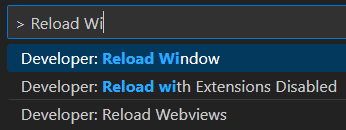
While this operation doesn’t reload specific caches, it does often lead to the proper display of file contents and user interface elements. Furthermore, it refreshes extensions.
5.2. Clear Search History
The Search: Clear Search History operation ensures any cached inputs in the search panels are cleared. Thus, it can resolve issues with search:
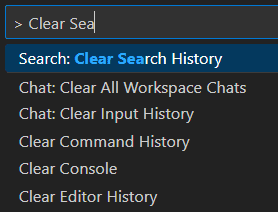
However, in this case, file indexing also isn’t affected.
5.3. Clear Editor History
Similar to the last one, Clear Editor History is an operation that clears cached search terms. However, it works on the main search input control (top of the editor window):
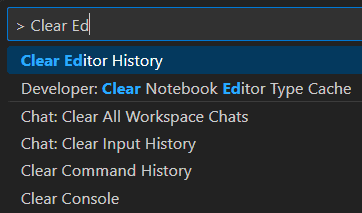
So, this means no file history or search text is available for autocompletion or selection there.
5.4. Clear Recently Opened
Lastly, Clear Recently Opened removes the list of files, directories, and projects that VSCode stores as recently opened:
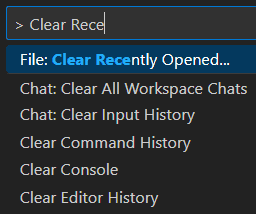
All of the operations in this section work with one specific database file:
<DATA_DIRECTORY>User/globalStorage/state.vscdbDeleting the whole file may cause VSCode to reset certain interface layouts, but it’s recreated when required.
6. Cache Clear Task
For completeness, let’s assume we want to clear the editor history when starting VSCode and briefly explain how to do that.
First, we add a task to tasks.json in the .vscode project-level directory:
{
  "version": "2.0.0",
  "tasks": [
    {
      "label": "clearEditorHistory",
      "command": "${command:workbench.action.clearEditorHistory}"
    }
    [...]
  ]
}
After that, we use it in launch.json inside the same directory:
{
  "version": "0.2.0",
  "configurations": [
    {
      [...]
      "preLaunchTask": "clear-editor-history"
      [...]
    }
  ]
}
This way, clearEditorHistory becomes a preLaunchTask meaning that the clearing happens during initialization.
7. Summary
In this article, we explored caching in VSCode, how it works with files, ways to clear some caches inside the editor, and how different operations affect them.
In conclusion, knowing the different cache types in VSCode and how to manage them can be important for optimization or in case of issues.
The post Visual Studio Code File and Cache Handling first appeared on Baeldung.


